This directory lists English-language resources for blind and low vision people who use a screen reader and want to build apps with help from AI, sometimes called “vibe coding.” It covers guides, tools, courses, communities, podcasts, articles, and research, free and paid, for Windows, Mac, iOS, Android, Linux, and the web. Every resource explicitly mentions blindness, screen readers, or accessibility. Every resource was published or updated in 2024 or later, and every link was checked on 1 October 2026, the entries added on 3 October 2026 were checked that day, the two added on 4 October 2026 were checked that day, and the one added on 6 October 2026 was checked that day.
A word about the name. Elsewhere, “blind vibe coding” has been used to mean letting an AI write code you never look at. Here the phrase is claimed in a positive sense, the way many communities have taken back a word: blind people building apps with AI, and checking the results by every nonvisual means available. That checking is the opposite of the careless habit the phrase has described.
Two questions run through the whole directory, and it helps to keep them apart. First, can you run the AI tool with your screen reader? Second, will the app you build work for other screen reader users? A tool can be good at one and poor at the other, so most resources have an Evidence field that says which kind of evidence was found. The field is left out when no evidence was found either way.
One idea is worth carrying into any project. Sighted developers often check their work by looking. Without sight, you check it by gathering evidence: tests that pass or fail, logs, error messages, exit codes, accessibility scans, and what your screen reader actually says. That habit is not just a workaround. It is good engineering, and it is the best defense against code that an AI says works but does not.
Building your own tools is a real new option, but it does not excuse anyone from making their own products accessible. It adds a path; it does not replace the need for accessible mainstream software. And AI does not mean anyone can build anything overnight: start small, check everything, and expect to learn as you go.
Contents
- About this directory
- Where to start
- Agents, add-ons, and skills (11 resources)
- AI coding tools (6 resources)
- Articles and news (7 resources)
- Communities and organizations (5 resources)
- Courses and training (3 resources)
- Podcasts and videos (13 resources)
- Research (7 resources)
- Appendix: by date
- Appendix: by evidence
- Appendix: by platform
- Appendix: by title
- Appendix: a nonvisual development checklist
- Appendix: how this directory was made
About this directory
Each category is a level 2 heading. Each resource is a level 3 heading whose text is a link to the resource. Under each resource is a short list of fields in alphabetical order: Cost, Date, Description, Evidence, Level, Platforms, Publisher, Transcript, Type, and Web page. A field is shown only when it has something to say. Categories and resources are in alphabetical order, ignoring a leading “A,” “An,” or “The.” The appendixes list every resource again by date, by evidence, by platform, and by title, followed by a practical checklist and a note on how the directory was made.
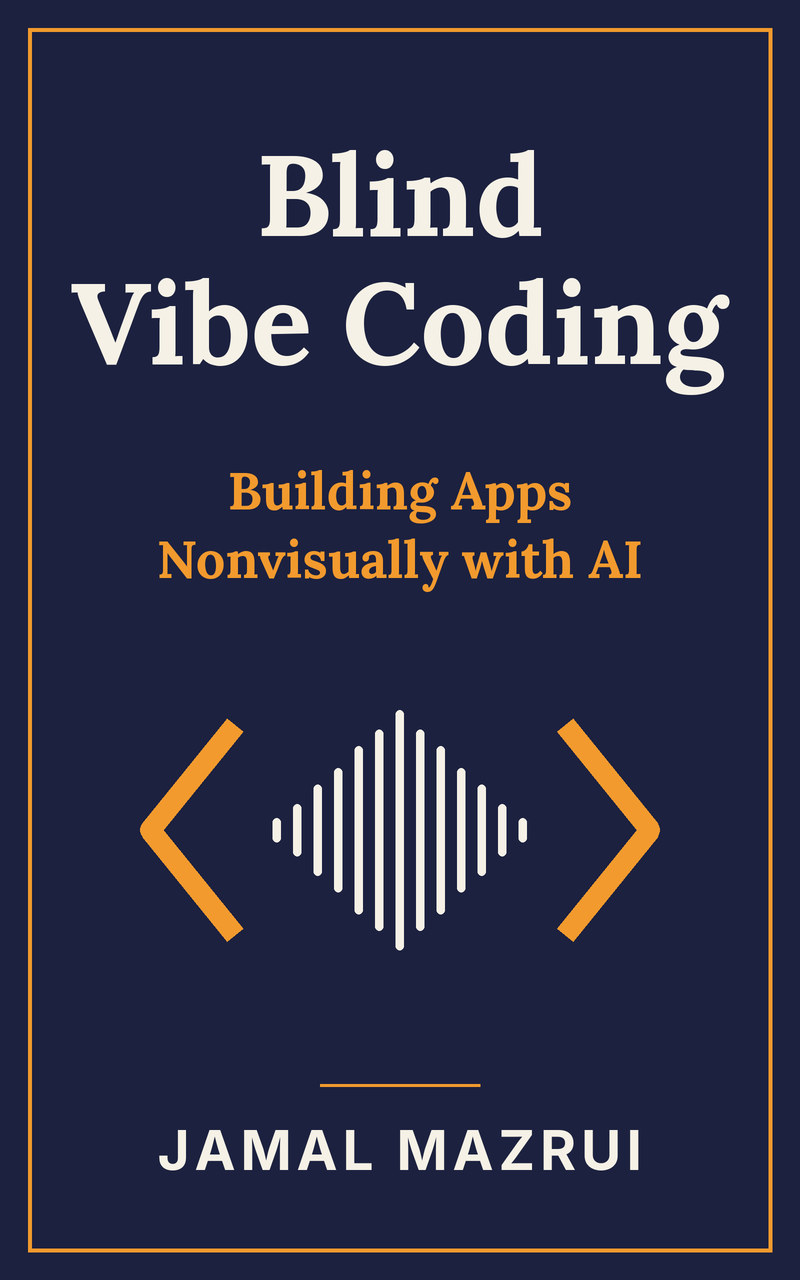
The book. This directory has a companion Kindle ebook, Blind Vibe Coding: Building Apps Nonvisually with AI by Jamal Mazrui (October 2026): sixteen hands-on tutorials, most opening with the story of a real builder, from a talking timer made in a chat window to Windows programs, NVDA add-ons, browser extensions, and iPhone and Android apps, with a nonvisual release checklist and a glossary. Its second update, submitted on 6 October 2026, adds what Blind Apps shows about where blind developers actually build, from the platforms they choose to the Android apps they have shipped, and a note on telling directory keepers about a finished app. It is sold on Amazon’s Kindle store, at $4.99 with no DRM, so buyers can also download it as an EPUB from their Amazon account. Its sources, build scripts and publishing script are in the book’s own GitHub repository, so the project can be rebuilt and updated as the tools change.
License. This directory’s own text is available under CC BY-SA 4.0. Each resource it lists belongs to its owners and keeps its own license.
What gets included. Every resource explicitly mentions blindness, screen readers, or accessibility, and holds substantive content of its own. When a resource is a recording or a document, its title links straight to the audio, video, or PDF file where one is available, and a Transcript field links to a transcript when there is one.
What counts as an app. An app is any program a person can install or run to get a task done: a desktop or mobile app, a web app, a command-line tool, a screen reader add-on or script, a browser extension, or a voice add-on such as one for Alexa. A prompt, a plan, or a list of ideas is not an app by itself.
What the Evidence field means. These labels are used:
- Official support: The maker documents a screen reader mode or screen reader features.
- Screen reader vendor guidance: Advice from a screen reader maker, such as NV Access or Freedom Scientific.
- Blind or low vision user experience: A blind or low vision person describes actually using it.
- Screen reader user community: A group or forum run by or for blind and low vision people.
- Designed for screen readers: The publisher says it was built for screen reader users; no one here tested that claim.
- Research: A study of blind developers or of how accessible the tools are.
- Output checking only: Helps make the app you build more accessible; says nothing about using the tool itself with a screen reader.
What the Level field means. Beginner resources assume you can use your screen reader well but have not programmed. Intermediate resources assume you can find files, run a command, and read an error message. Advanced resources assume programming experience.
How dates were set. When a page shows a date, that date is used. When it does not, the date comes from facts in the page itself. For example, the term “vibe coding” was coined in February 2025, so a page about vibe coding is from 2025 or later. Such dates say “or later.” An older tool can appear through a 2024 or later guide, release, or update.
Gaps. The evidence is strongest for Windows and Mac, terminal coding agents, Visual Studio Code, GitHub, and web apps. Android appears through a single accessibility article and through the Android apps that blind developers have shipped, listed in Blind Apps. No qualifying English resource from 2024 or later was found about building Alexa or other voice apps with AI. Linux is covered by terminal tools that run on Linux, Mac, and Windows. Browser-based app builders appear only through research; the ASSETS 2025 paper in the Research section found that tools of this kind often leave screen reader users without word of what the agent is doing.
Where to start
Windows with JAWS or NVDA
- Learn the basics of repositories, Visual Studio Code, and Copilot in Git Going with GitHub.
- Read GitHub Copilot for Visual Studio Code before letting an AI change your files.
- If you prefer a terminal, try Use Claude Code with a Screen Reader or Git, GitHub CLI, and Copilot CLI.
- Hear how others did it in Turning Ideas into Assistive Tools with Vibe Coding and DIY Accessibility: Adventures in Vibe Coding.
- New to programming? Learning Python with NVDA teaches Python inside NVDA itself.
- Before you write an NVDA add-on with AI, read In-Process 10th March 2026.
- To build full Windows programs with an AI, keyboard and screen reader first, see HomerDev: the Homer Development Kit, and review the plans your AI writes in PlanCake.
Mac, iPhone, and iPad with VoiceOver
- Start with AppleVis Extra 115: Blind Developer Showcase: A Chat with Quinton Williams of VAL: Voice, Alarm & Chimes and AppleVis Extra 114: Blind Developer Showcase: A Chat with Ashley Cox of Simulcast.
- Read Taylor’s Teardowns: Xcode Intelligence for a tour of the coding assistant built into Xcode.
- Add Swift Agents to keep VoiceOver labels and hints in the code the AI writes.
- Ask questions in AppleVis.
Android with TalkBack
- Read Google I/O and GenAI’s Impact on Accessibility to see how well Gemini in Android Studio writes accessible code.
- Consider a web app instead of a native one, as described in AppleVis Extra #112: Stephen Lovely on Rethinking Visual Accessibility with Vision AI Assistant.
- See which blind developers have shipped Android apps, and what they built them with, in Blind Apps.
- Whatever you build, test it with TalkBack on a real phone.
Linux or a terminal-only workflow
- Compare Use Claude Code with a Screen Reader, Gemini CLI Settings, and Git, GitHub CLI, and Copilot CLI.
- Work in small, commit-sized steps with Git, so every change the agent makes is easy to review and undo.
- Test streaming output, permission prompts, and alerts with Orca or your usual setup before relying on any tool.
Web apps and browser extensions
- Watch How This Visually Impaired Engineer Uses Claude Code to Make His Life More Accessible for small, useful browser tools.
- Read Everybody Is Vibe Coding. Here Is What That Does to Accessibility, and What to Actually Do About It. before you publish anything.
- Let the agent test its own work with A Closer Look at Axe MCP Server and Accessibility Agents.
Agents, add-ons, and skills
Accessibility Agents
- Cost: Free and open source (MIT license); you still need an AI coding tool, such as a Claude Pro, Max, or Team plan for Claude Code
- Date: 2026
- Description: A set of 79 AI agents in eight teams, plus more than 100 skills (108 counted on 30 September 2026), that check code for accessibility problems while an AI assistant writes it, aiming at WCAG 2.2 AA. They run in Claude Code, GitHub Copilot in Visual Studio Code and the command line, Gemini CLI, and Codex CLI, plus an MCP server with 24 scanning tools for Claude Desktop and other clients. Teams cover web code, Office documents, PDFs, Markdown, GitHub workflows, and developer tools, including an NVDA add-on specialist and a desktop accessibility specialist. One-line installers exist for Windows PowerShell and for Mac and Linux. It is led by Taylor Arndt and Jeff Bishop and built by and for the blind and low vision community. The project itself warns that AI checks cannot replace testing with real screen readers. Native iOS and Android apps are not yet covered.
- Evidence: Screen reader user community; Output checking only
- Level: Intermediate
- Platforms: Linux, Mac, web, Windows
- Publisher: Community Access
- Type: Software
Accessibility Skills by Mike Gifford
- Cost: Free and open source (GNU Affero General Public License)
- Date: 2026
- Description: More than 30 long, rule-heavy agent skills, one per web pattern, such as forms, keyboard use, tables, tooltips, SVG, and progressive enhancement, plus workflow skills that review findings for evidence. Each skill says when to load it, so an agent reads only the rules a project needs. They are derived from the author’s ACCESSIBILITY.md project and stress manual testing with real assistive technology alongside automated checks.
- Evidence: Output checking only
- Level: Intermediate
- Platforms: Linux, Mac, web, Windows
- Publisher: Mike Gifford
- Type: Software
Accessibility Skills for AI Agents
- Cost: Free; each skill keeps its own license (142 MIT, 33 GNU Affero General Public License)
- Date: September 2026
- Description: A single screen-reader-friendly page gathering 175 accessibility skills for AI coding agents from 8 public collections, as published on 30 September 2026. Skills are grouped by topic, and each entry gives the skill’s source, license, description and full text, so you can compare collections before installing any. One example is the forms skill from Mike Gifford’s collection, with rules for labels, instructions, errors and required fields.
- Evidence: Output checking only
- Level: Intermediate
- Platforms: Linux, Mac, web, Windows
- Publisher: Jamal Mazrui
- Type: Directory
ACCESSIBILITY.md
- Cost: Free and open source (MIT license)
- Date: 2025 or later
- Description: A proposed open format for a file named ACCESSIBILITY.md, aligned with the AGENTS.md convention, so that one file states a project’s accessibility commitments to people and gives coding agents explicit instructions. Its template has three parts: transparency (the WCAG conformance level claimed, known gaps, and the assistive technologies tested), governance (how accessibility issues are classified, what counts as done, and how severe a problem is), and automated guardrails (continuous-integration workflows, axe-core checks, and pre-commit hooks). It also holds best-practice guides for forms, SVG, keyboard use and other patterns, and sample manual test procedures. Since September 2026 GitHub shows a repository’s ACCESSIBILITY.md as its own tab, which makes this file visible to visitors as well as to agents.
- Evidence: Output checking only
- Level: Intermediate
- Platforms: Cross-platform
- Publisher: Mike Gifford
- Type: Template and documentation
AI-Powered Accessibility Scanner
- Cost: Free and open source (MIT)
- Date: 2026
- Description: A GitHub Action, in beta, that scans a website for accessibility barriers with the axe-core engine, files a GitHub issue for each finding, and can assign those issues to the Copilot coding agent, which proposes fixes for a person to review before merging. Copilot follows any custom instructions you keep in the repository, so your accessibility rules carry into every fix.
- Evidence: Output checking only
- Level: Intermediate
- Platforms: web
- Publisher: GitHub
- Type: Software
A Closer Look at Axe MCP Server
- Cost: Free article; the server is part of Deque’s commercial axe tools
- Date: August 2025
- Description: Explains how Deque’s axe MCP Server feeds accessibility test results and repair advice straight to an AI coding agent. It works with GitHub Copilot, Cursor, Claude Code, Windsurf, Visual Studio Code, and any agent that supports MCP. This gives the agent concrete findings to fix, rather than a vague request to make something accessible.
- Evidence: Output checking only
- Level: Intermediate
- Platforms: Linux, Mac, web, Windows
- Publisher: Deque Systems
- Type: Article
Getting Started with GitHub Copilot Custom Agents for Accessibility
- Cost: Free guide; a GitHub Copilot plan is needed to use the agents
- Date: 2025 or later
- Description: GitHub’s developer guide to setting up Copilot custom agents that focus on accessibility, so the AI checks its own work against accessibility rules.
- Evidence: Output checking only
- Level: Intermediate
- Platforms: Linux, Mac, web, Windows
- Publisher: GitHub
- Type: Documentation
HomerDev: the Homer Development Kit
- Cost: Free and open source (MIT)
- Date: October 2026
- Description: A free kit for building Windows programs that work well with JAWS and NVDA, written to be handed to an AI. It holds shared C# classes and Python modules for accessible dialogs, keys and screen reader speech; project templates; build, check, push and release scripts that write detailed logs; and 15 Claude skills, covering dialogs and hotkeys, installers, documentation, spoken tutorials, JAWS scripts and NVDA add-ons, and publishing an accessible GitHub Page. Its guide explains how to steer an AI with three sentences and how to check the result without sight.
- Evidence: Designed for screen readers
- Level: Intermediate to advanced
- Platforms: Windows
- Publisher: Jamal Mazrui
- Type: Software development kit and Claude skills
In-Process 10th March 2026
- Cost: Free
- Date: March 2026
- Description: The NV Access newsletter answers whether AI can help write NVDA add-ons. It says AI can do impressive work, but warns about the risks of shipping code you do not understand. It urges add-on authors to learn the code, points to the helpful add-on community, and explains how to submit an add-on to the NVDA Add-on Store and what checks are run on it.
- Evidence: Screen reader vendor guidance
- Level: Intermediate
- Platforms: Windows
- Publisher: NV Access
- Type: Newsletter article
Optimizing GitHub Copilot for Accessibility with Custom Instructions
- Cost: Free guide; a GitHub Copilot plan is needed to use it
- Date: 2025 or later
- Description: GitHub’s guide to writing a custom instructions file so Copilot produces more accessible code every time, without repeating the request in each prompt.
- Evidence: Output checking only
- Level: Intermediate
- Platforms: Linux, Mac, web, Windows
- Publisher: GitHub
- Type: Documentation
Swift Agents
- Cost: Free and open source (MIT license); needs a paid Claude Code or GitHub Copilot plan
- Date: 2026
- Description: Sixteen Swift agents for Claude Code and for Copilot in Visual Studio Code, built by blind developer Taylor Arndt at Techopolis. A hook sends each Swift task to a lead agent, which calls the right specialists, including one for iOS and macOS accessibility that covers VoiceOver, Dynamic Type, and focus. Its before-and-after example shows the agents adding the VoiceOver labels and hints that AI tools tend to leave out. It fills part of the native iOS gap in Accessibility Agents.
- Evidence: Blind or low vision user experience; Output checking only
- Level: Intermediate
- Platforms: iOS, Mac
- Publisher: Techopolis
- Type: Software
AI coding tools
Gemini CLI Settings
- Cost: Open source; usage limits depend on your Google account or API plan
- Date: 2025 or later
- Description: The settings reference for Gemini CLI, Google’s terminal AI coding agent. Its Screen Reader Mode setting shows output as plain text that a screen reader can follow. You can also turn it on for one session with the –screen-reader flag, listed in the Gemini CLI command reference.
- Evidence: Official support
- Level: Intermediate
- Platforms: Linux, Mac, Windows
- Publisher: Google
- Type: Documentation
Git, GitHub CLI, and Copilot CLI
- Cost: Free guide; GitHub Copilot CLI needs a Copilot plan
- Date: May 2026
- Description: GitHub’s screen reader guide to using Git, the GitHub command-line tool, and the Copilot CLI coding agent in a terminal, with install notes and step-by-step workflows. GitHub CLI has its own screen reader mode. Per a July 2026 InfoQ report, Copilot CLI turns on screen reader support when it detects a screen reader, adding labeled icons and turning off animations.
- Evidence: Official support
- Level: Beginner to intermediate
- Platforms: Linux, Mac, Windows
- Publisher: GitHub
- Type: Documentation
GitHub Copilot for Visual Studio Code
- Cost: Visual Studio Code is free; GitHub Copilot has free and paid plans
- Date: Late 2024 or later (it mentions the free Copilot plan)
- Description: GitHub’s screen reader guide to Copilot in Visual Studio Code. It covers turning on screen reader mode with Alt+Shift+F1, hearing accessibility signals, reading suggestions and chat answers in the Accessible View with Alt+F2, and opening Copilot Chat with Control+Shift+I. Short video tutorials show inline suggestions, inline chat, and the chat view with a screen reader.
- Evidence: Official support
- Level: Beginner
- Platforms: Linux, Mac, Windows
- Publisher: GitHub
- Type: Documentation
PlanCake
- Cost: Free; donations welcome
- Date: October 2026
- Description: A Windows program for reading and annotating Markdown files, written by a blind developer who reviews the long plans that AI coding tools produce. Open a file, move through it by headings, lists, links, and tables, and press Enter anywhere to add a note; notes are kept inside the file, with no Internet connection except an update check. It exports the document to HTML and the notes to JSON. Source is on GitHub.
- Evidence: Designed for screen readers
- Level: Intermediate
- Platforms: Windows
- Publisher: André Polykanine, Oire Software
- Type: Software
Use Claude Code with a Screen Reader
- Cost: Free guide; Claude Code needs a paid Claude plan or API account
- Date: 2026
- Description: Anthropic’s guide to the screen reader mode of Claude Code, its terminal AI coding agent. The mode swaps the visual terminal screen for plain, linear text. Turn it on for one session with claude –ax-screen-reader, or always with the CLAUDE_AX_SCREEN_READER environment variable or the axScreenReader setting. It needs version 2.1.181 or later, rings the terminal bell when Claude needs you, and does not turn on by itself when a screen reader is running.
- Evidence: Official support
- Level: Beginner to intermediate
- Platforms: Linux, Mac, Windows
- Publisher: Anthropic
- Type: Documentation
Visual Studio Code April 2024 (version 1.89)
- Cost: Free
- Date: April 2024
- Description: Release notes that added a progress sound for screen reader users and, in the Accessible View of a chat answer, keys to jump between code blocks: Alt+Control+PageDown for the next block and Alt+Control+PageUp for the previous one on Windows and Linux.
- Evidence: Official support
- Level: Intermediate
- Platforms: Linux, Mac, Windows
- Publisher: Microsoft
- Type: Release notes
Articles and news
Adding an Accessibility Page to Your Repository
- Cost: Free
- Date: 2026
- Description: GitHub’s own documentation for the accessibility tab that repository front pages show when a file named ACCESSIBILITY.md is present. GitHub looks for the file in the .github folder, the repository root, and the docs folder, in that order. The page suggests the statement cover the project’s accessibility priorities, supported environments, known barriers, contributor expectations, reporting process, ownership and maintenance, and describes it as a clear way for people to report barriers. For a program built by a screen reader user, this is the natural place to say which screen readers it was tested with and what is known not to work.
- Evidence: Output checking only
- Level: Beginner
- Platforms: web
- Publisher: GitHub Docs
- Type: Documentation
Bobby Singh – Finding Light Through NVDA
- Cost: Free
- Date: September 2025
- Description: A former UI and UX team leader who lost his sight tells how he rebuilt his development career with NVDA and Visual Studio Code. He uses ChatGPT and local models through Ollama to summarize, brainstorm, and write code, and the AI Describer add-on with a local model to understand what is on screen during front-end work.
- Evidence: Blind or low vision user experience
- Level: Beginner
- Platforms: Windows
- Publisher: NV Access
- Transcript: Read the transcript
- Type: Article and video
DIY Accessibility: Adventures in Vibe Coding
- Cost: Free
- Date: Fall 2026
- Description: A screen reader user with almost no coding background describes vibe coding for accessibility after a session at the American Council of the Blind convention. Examples include asking ChatGPT to replace an inaccessible Python interface with standard Windows controls, and asking Codex to study a game’s files and make it accessible. The writer found Gemini, ChatGPT, the ChatGPT desktop app, and Codex worked well with a screen reader, and stresses that saying only “make this accessible” leaves too many decisions to the AI.
- Evidence: Blind or low vision user experience
- Level: Beginner
- Platforms: Windows
- Publisher: AFB AccessWorld
- Type: Article
Everybody Is Vibe Coding. Here Is What That Does to Accessibility, and What to Actually Do About It.
- Cost: Free to read
- Date: June 2026
- Description: Blind developer Taylor Arndt lists the screen reader problems she finds again and again in vibe-coded apps, such as buttons announced only as “button,” pages with no headings, and focus that never moves. It works as a checklist when you test your own app.
- Evidence: Blind or low vision user experience
- Level: Beginner
- Platforms: web
- Publisher: Taylor Arndt
- Type: Article
GitHub Repository Landing Pages Now Show an Accessibility Tab, If Provided
- Cost: Free
- Date: October 2026
- Description: Eric Bailey, who wrote the feature as his last contribution at GitHub, announces that a repository’s ACCESSIBILITY.md file now appears as an Accessibility tab on the repository’s front page, in the same strip as the ReadMe, license, code of conduct and security policy. The file is optional and only appears when supplied. He hopes that providing one becomes as ordinary as providing those other files, and that a visible accessibility statement comes to signal a mature project. The post shows his own statement for the a11y-webring.club repository as an example.
- Evidence: Output checking only
- Level: Beginner
- Platforms: web
- Publisher: Eric Bailey
- Type: Blog post
Google I/O and GenAI’s Impact on Accessibility
- Cost: Free
- Date: 2024
- Description: An accessibility expert at Google I/O 2024 tests whether Gemini in Android Studio writes accessible app code, and covers new AI features in the TalkBack screen reader. It is not written by a blind developer, but it is one of the few recent pieces on AI coding for Android.
- Level: Intermediate
- Platforms: Android
- Publisher: Deque Systems
- Type: Article
Taylor’s Teardowns: Xcode Intelligence
- Cost: Free to read
- Date: March 2026
- Description: Taylor Arndt, who builds iOS apps with VoiceOver, walks through Xcode Intelligence, the coding assistant built into Xcode 26, including the Claude agent bundled with it. She tests it live on a real project and explains where to find the settings.
- Evidence: Blind or low vision user experience
- Level: Intermediate
- Platforms: iOS, Mac
- Publisher: Taylor Arndt
- Type: Article
Communities and organizations
Accessibility Community Discussions
- Cost: Free (GitHub account needed to post)
- Date: Ongoing forum, linked from GitHub’s 2026 accessibility documentation
- Description: GitHub’s public forum category for accessibility questions and comments, including questions about using Copilot and other GitHub tools with a screen reader.
- Level: Beginner
- Platforms: Cross-platform
- Publisher: GitHub
- Type: Forum
AppleVis
- Cost: Free (account needed to post)
- Date: Ongoing; active in 2026
- Description: The main community site for blind and low vision users of Apple products, now part of Be My Eyes. Its forums, including App Development and Programming, carry first-hand reports on using Xcode, terminal coding agents, and vibe coding with VoiceOver. Its podcast, bug tracker, and Resources for Developers page are useful too.
- Evidence: Screen reader user community
- Level: Beginner
- Platforms: iOS, Mac, web
- Publisher: AppleVis (Be My Eyes)
- Type: Community website
Blind Apps
- Cost: Free
- Date: October 2026
- Description: A screen-reader-friendly directory of 90 apps and tools made by 39 blind and low vision developers, each with a one-sentence summary, the platform it runs on, its programming languages, and the AI it uses or was built with. Its statistics show where blind developers build: Windows leads, followed by macOS, iOS, NVDA add-ons, the web, Android, and Linux, and Python is the most common language. Fifteen of the apps were built with help from an AI, so it is a good place to see what is possible and whose work to learn from.
- Level: Beginner
- Platforms: Android, iOS, Linux, Mac, web, Windows
- Publisher: Jamal Mazrui
- Type: Directory
Can We Talk About Vibe Coding?
- Cost: Free
- Date: 2026
- Description: An AppleVis forum thread where VoiceOver users debate vibe coding. One Python developer tells how he used OpenAI’s Codex command-line agent and Xcode to build a native Mac app he can use with VoiceOver, without writing code himself. His tips: start small, put VoiceOver requirements in the agent’s instruction file, commit to Git often so you can undo mistakes, and add a log to see what the app is doing. Other members warn about code you do not understand and about security.
- Evidence: Blind or low vision user experience
- Level: Beginner
- Platforms: iOS, Mac
- Publisher: AppleVis
- Type: Forum thread
Community Access
- Cost: Free
- Date: 2026
- Description: An open-source group built by and for blind and low vision people. It makes the Accessibility Agents project, runs the Git Going with GitHub workshop, and keeps a public support repository for questions.
- Evidence: Screen reader user community
- Level: Beginner
- Platforms: Cross-platform
- Publisher: Community Access
- Type: Organization
Courses and training
Git Going with GitHub
- Cost: Free
- Date: 2026
- Description: A two-day workshop written for screen reader users first. It starts with GitHub in the browser, moves to Visual Studio Code with GitHub Copilot, and ends with Accessibility Agents and a capstone where you build your own agent. It has 23 chapters, 29 appendixes including a screen reader cheat sheet, 21 hands-on challenges with worked answers, and a podcast episode for every chapter.
- Evidence: Designed for screen readers
- Level: Beginner
- Platforms: Linux, Mac, web, Windows
- Publisher: Community Access
- Type: Course
Learning Python with NVDA
- Cost: Free and open source
- Date: October 2026
- Description: An NVDA add-on that teaches Python inside the screen reader, in English and Spanish, with 40 chapters and 160 lessons. It has a guided mode and a free editor mode, sounds that mark indentation, syntax checking, quizzes, progress tracking, and optional help from an AI model with your own Google Gemini key. Version 3.0.0 works with NVDA 2022.1 through 2026.2, and the add-on is in the NVDA Add-on Store under the same name. The author’s own vision was not stated on the page.
- Evidence: Designed for screen readers
- Level: Beginner
- Platforms: Windows
- Publisher: Kevin Velásquez Vargas
- Type: Course and NVDA add-on
Using Claude with JAWS, ZoomText, and Fusion
- Cost: Free
- Date: February 2026
- Description: A recorded webinar from the Freedom Scientific training team on using the Claude web app with JAWS. It covers moving around the interface with the keyboard, managing prompts, building repeatable workflows with Skills, and choosing a model.
- Evidence: Screen reader vendor guidance
- Level: Beginner
- Platforms: web, Windows
- Publisher: Freedom Scientific
- Type: Webinar recording
- Web page: Open the web page
Podcasts and videos
AI Adventures: Coding, Plugins, and Panda Express Mishaps with Taylor Arndt
- Cost: Free
- Date: November 2024
- Description: Technically Working episode 86. Taylor Arndt explains how she uses Visual Studio Code, GitHub Copilot, Cursor, and ChatGPT to build WordPress plugins, from naming and writing specs to finished code.
- Evidence: Blind or low vision user experience
- Level: Beginner
- Platforms: web
- Publisher: Technically Working (Damashe Thomas and Michael Babcock)
- Type: Podcast episode
AI’s Role in Improving Accessibility
- Cost: Free
- Date: November 2025
- Description: A public radio story about Taylor Arndt, who has been blind since birth and taught herself to code at 14. She says nearly every coding job now gets help from AI, and that AI models need training data that already includes accessibility.
- Evidence: Blind or low vision user experience
- Level: Beginner
- Platforms: Cross-platform
- Publisher: Marketplace
- Type: Radio episode
- Web page: Open the web page
AppleVis Extra #112: Stephen Lovely on Rethinking Visual Accessibility with Vision AI Assistant
- Cost: Free
- Date: December 2025
- Description: Stephen Lovely, blind since birth, built Vision AI Assistant as a web app by vibe coding on the Base44 platform. He explains why he chose a progressive web app over a native app (no store review delays and one app for iPhone and Android), how he keeps every button labeled, and what running AI services costs.
- Evidence: Blind or low vision user experience
- Level: Beginner
- Platforms: Android, iOS, web
- Publisher: AppleVis
- Transcript: Read the transcript
- Type: Podcast episode
AppleVis Extra 114: Blind Developer Showcase: A Chat with Ashley Cox of Simulcast
- Cost: Free
- Date: July 2026
- Description: The first episode in an AppleVis series showcasing blind and low vision developers. Ashley Cox, a blind developer, is building Simulcast, a native podcast and radio app for Apple platforms written entirely in Swift and tested by several hundred beta testers. He explains that SwiftUI lets a blind developer write an interface in code instead of dragging objects on screen, that he uses AI for guidance on visual design rather than to write the code, and why testing with many VoiceOver settings, such as high verbosity and rotor actions, exposed problems he never would have found alone. He also describes the App Store review process.
- Evidence: Blind or low vision user experience
- Level: Beginner to intermediate
- Platforms: iOS, Mac
- Publisher: AppleVis
- Transcript: Read the transcript
- Type: Podcast episode
AppleVis Extra 115: Blind Developer Showcase: A Chat with Quinton Williams of VAL: Voice, Alarm & Chimes
- Cost: Free episode; VAL is a paid app
- Date: July 2026
- Description: Quinton Williams, who is totally blind and was not a trained programmer, describes learning Swift “backwards”: he builds with Claude Code, then studies why the code works, and uses Git to return to a bug and understand what caused it. Within months he published VAL, a talking and chiming clock for iPhone and Mac. Practical tips include submitting App Store builds from the command line with Fastlane, scripting App Store screenshots and having AI describe them, and asking a sighted friend to check the app with VoiceOver turned off.
- Evidence: Blind or low vision user experience
- Level: Beginner
- Platforms: iOS, Mac
- Publisher: AppleVis
- Transcript: Read the transcript
- Type: Podcast episode
Blind RSS and Vibe Coding: Accessible News Made Simple
- Cost: Free
- Date: 2025 or later
- Description: Double Tap talks with Brandon Bracey, who built the Blind RSS reader by vibe coding without traditional programming skills. They cover the app’s keyboard commands and first-letter navigation, and what vibe coding means for blind builders.
- Evidence: Blind or low vision user experience
- Level: Beginner
- Platforms: Not stated
- Publisher: Double Tap (Steven Scott and Shaun Preece)
- Type: Podcast episode
- Web page: Open the web page
Earshot and Beyond: How Blind Developers Are Creating with AI
- Cost: Free
- Date: June 2026 or later
- Description: Michael Babcock tells Shaun Preece how he built Earshot, a podcast app designed for accessibility first, with Claude and Codex. He explains why product requirement documents, GitHub, and accessibility agents matter, and talks about model limits, subscription tiers, and AI mistakes.
- Evidence: Blind or low vision user experience
- Level: Beginner
- Platforms: iOS
- Publisher: Double Tap (Steven Scott and Shaun Preece)
- Type: Podcast episode
- Web page: Open the web page
How a Blind Developer Brought Artemis II to Life for Everyone
- Cost: Free
- Date: April 2026 or later
- Description: Blind developer Jakob Rosen used AI and vibe coding to build a live, accessible dashboard for NASA’s Artemis II mission, including an audio radar that lets listeners hear where the spacecraft is. The hosts also discuss the jump in App Store submissions as vibe coding spreads.
- Evidence: Blind or low vision user experience
- Level: Beginner
- Platforms: web
- Publisher: Double Tap (Steven Scott and Shaun Preece)
- Type: Podcast episode
- Web page: Open the web page
How This Visually Impaired Engineer Uses Claude Code to Make His Life More Accessible
- Cost: Free
- Date: February 2026
- Description: An episode of How I AI, about 49 minutes, with Joe McCormick, a principal software engineer who lost most of his central vision before college. He shows how he builds small Chrome extensions with Claude Code that describe images in Slack, fix typos, and summarize links with keyboard shortcuts. He also covers Claude Skills for repeated tasks and ways to make Claude Code friendlier to a screen reader.
- Evidence: Blind or low vision user experience
- Level: Beginner to intermediate
- Platforms: web
- Publisher: How I AI (Lenny’s Newsletter)
- Type: Video and podcast episode
- Web page: Open the web page
Smart Glasses, Perkins Braillers, and Vibe Coding
- Cost: Free
- Date: 2025 or later
- Description: Technically Working episode 124. Michael Babcock shares progress and setbacks rebuilding a scheduling tool with product requirement documents, Supabase, and GitHub’s remote agent, and the hosts discuss what vibe coding really means.
- Evidence: Blind or low vision user experience
- Level: Beginner
- Platforms: web
- Publisher: Technically Working (Damashe Thomas and Michael Babcock)
- Type: Podcast episode
Turning Ideas into Assistive Tools with Vibe Coding
- Cost: Free
- Date: 2025 or later
- Description: Steven Scott spends a weekend using Claude as his coder while he acts as project manager. He builds an NVDA item chooser modeled on a Mac feature and a simple audio player for double-speed playback, and shares what he learned about planning and prompting.
- Evidence: Blind or low vision user experience
- Level: Beginner
- Platforms: Windows
- Publisher: Double Tap (Steven Scott and Shaun Preece)
- Type: Podcast episode
- Web page: Open the web page
Vibe Coding with AI: How Blind Users Can Build Their Own Tools
- Cost: Free
- Date: 2025 or later
- Description: Steven Scott describes building a script that makes Rogue Amoeba’s Farrago work better with VoiceOver, an NVDA add-on, and an early progressive web app, all through conversation with Claude. The hosts weigh the pros and cons of AI-written code and whether it is fair to share or sell vibe-coded tools.
- Evidence: Blind or low vision user experience
- Level: Beginner
- Platforms: Mac, web, Windows
- Publisher: Double Tap (Steven Scott and Shaun Preece)
- Type: Podcast episode
- Web page: Open the web page
Weekend: Good Vibes
- Cost: Free
- Date: 2025 or later
- Description: Steven Scott walks through the actual prompts he used to build a basic NVDA add-on, a QuickTime-style media player for Windows, and an early accessible media editor. The hosts compare Mac and Windows for this work and talk about using a terminal tool versus a chatbot.
- Evidence: Blind or low vision user experience
- Level: Beginner
- Platforms: Mac, Windows
- Publisher: Double Tap (Steven Scott and Shaun Preece)
- Type: Podcast episode
Research
A11y LLM Eval Report
- Cost: Free
- Date: Ongoing report, checked October 2026
- Description: Microsoft’s public benchmark of how well AI models produce accessible HTML, with and without accessibility instructions and skills, using automated checks on curated test cases. Without instructions, models rarely produce accessible pages by default, which shows why accessibility rules belong in your instructions. The report itself warns that passing every automated check does not mean a page is fully accessible.
- Evidence: Output checking only
- Level: Intermediate to advanced
- Platforms: web
- Publisher: Microsoft
- Type: Research report
Accessibility Heuristics for Vibe Coding Interfaces
- Cost: Free abstract; full text may need ACM access
- Date: October 2025
- Description: A paper from the ACM ASSETS 2025 conference that tests popular vibe coding tools such as Replit, Cursor, and Jules with a screen reader. It found that some tools never told the screen reader what the agent was doing or how far along it was, and that gray “ghost text” code suggestions give screen reader users no way to inspect them first. It offers a checklist for judging these tools and writing clear bug reports.
- Evidence: Research
- Level: Intermediate
- Platforms: web
- Publisher: ACM
- Type: Research paper
CodeA11y: Making AI Coding Assistants Useful for Accessible Web Development
- Cost: Free
- Date: February 2025 (CHI 2025)
- Description: A study of how developers use GitHub Copilot to build web interfaces. Developers seldom asked for accessibility, accepted code with placeholder labels, and could not tell whether the result was accessible. The authors built CodeA11y, a Copilot extension that suggests accessible code by default, flags accessibility errors, and reminds developers to finish placeholders. The participants were not blind; the lesson is about making generated apps accessible.
- Evidence: Research; Output checking only
- Level: Intermediate
- Platforms: web
- Publisher: Carnegie Mellon University and Apple researchers
- Type: Research paper
- Web page: Open the web page
The Impact of Generative AI Coding Assistants on Developers Who Are Visually Impaired
- Cost: Free
- Date: March 2025
- Description: Visually impaired developers completed programming tasks with an AI coding assistant. The assistant often made old barriers worse and added new ones: it flooded users with suggestions, so participants asked for “AI timeouts,” and it made switching between generated code and their own code harder. Participants still saw real promise. Useful for planning deliberate pauses and keeping control of the assistant.
- Evidence: Research
- Level: Intermediate
- Platforms: Cross-platform
- Publisher: Northeastern University and Microsoft researchers
- Type: Research paper
- Web page: Open the web page
LipCoder: Voice-Enabled Coding Toolkit
- Cost: Free
- Date: August 2026
- Description: A research paper presenting LipCoder, a toolkit that makes AI-assisted coding, including vibe coding, work through sound and speech for visually impaired programmers. It speaks feedback, plays short sounds called earcons to confirm what happened, and lets you navigate and change code by talking in plain language. In an early study, 5 visually impaired programmers did coding tasks with LipCoder and with a baseline of Visual Studio Code, GitHub Copilot, and VoiceOver. The authors say current screen readers give little support for these new AI workflows, and they argue for designing coding tools around sound first.
- Evidence: Research
- Level: Intermediate
- Platforms: Mac
- Publisher: Hayoon Kim, Sungho Lee, Juhwi Kim, Bongwon Suh, and Kyogu Lee
- Type: Research paper
- Web page: Open the web page
Microsoft Study Shows AI Assistants Help with Development for Programmers Who Are Blind or Have Low Vision
- Cost: Free
- Date: 2025 or later
- Description: A plain-language blog summary of the Microsoft study below. Blind developers describe turning user feedback into Copilot prompts, asking for plans in Ask mode before letting Copilot change files, and taking on user interface work they used to avoid.
- Evidence: Research
- Level: Beginner
- Platforms: Cross-platform
- Publisher: Microsoft Research
- Type: Blog post
Programmers Who Use Screen Readers in the Vibe Coding Era: Adaptation, Empowerment, and New Accessibility Landscape
- Cost: Free
- Date: 2026 (CHI 2026; first posted as a preprint in June 2025)
- Description: A two-week study of 16 blind and low vision programmers using GitHub Copilot. AI help made them faster and opened up user interface work, but they struggled to explain what they wanted, to check what the AI produced, and to keep track of several views at once. The paper ends with design advice for tool makers. A free copy is also on arXiv.
- Evidence: Research
- Level: Intermediate
- Platforms: Cross-platform
- Publisher: Microsoft Research
- Type: Research paper
Appendix: by date
Newest first. Within a group, entries with a known month come first, then the rest in alphabetical order.
2026 (28 resources) {#2026-28-resources}
- Blind Apps (October 2026)
- DIY Accessibility: Adventures in Vibe Coding (Fall 2026)
- GitHub Repository Landing Pages Now Show an Accessibility Tab, If Provided (October 2026)
- HomerDev: the Homer Development Kit (October 2026)
- Learning Python with NVDA (October 2026)
- PlanCake (October 2026)
- Accessibility Skills for AI Agents (September 2026)
- LipCoder: Voice-Enabled Coding Toolkit (August 2026)
- AppleVis Extra 114: Blind Developer Showcase: A Chat with Ashley Cox of Simulcast (July 2026)
- AppleVis Extra 115: Blind Developer Showcase: A Chat with Quinton Williams of VAL: Voice, Alarm & Chimes (July 2026)
- Earshot and Beyond: How Blind Developers Are Creating with AI (June 2026 or later)
- Everybody Is Vibe Coding. Here Is What That Does to Accessibility, and What to Actually Do About It. (June 2026)
- Programmers Who Use Screen Readers in the Vibe Coding Era: Adaptation, Empowerment, and New Accessibility Landscape (2026 (CHI 2026; first posted as a preprint in June 2025))
- Git, GitHub CLI, and Copilot CLI (May 2026)
- How a Blind Developer Brought Artemis II to Life for Everyone (April 2026 or later)
- In-Process 10th March 2026 (March 2026)
- Taylor’s Teardowns: Xcode Intelligence (March 2026)
- How This Visually Impaired Engineer Uses Claude Code to Make His Life More Accessible (February 2026)
- Using Claude with JAWS, ZoomText, and Fusion (February 2026)
- Accessibility Agents (2026)
- Accessibility Skills by Mike Gifford (2026)
- Adding an Accessibility Page to Your Repository (2026)
- AI-Powered Accessibility Scanner (2026)
- Can We Talk About Vibe Coding? (2026)
- Community Access (2026)
- Git Going with GitHub (2026)
- Swift Agents (2026)
- Use Claude Code with a Screen Reader (2026)
2025 (7 resources) {#2025-7-resources}
- AppleVis Extra #112: Stephen Lovely on Rethinking Visual Accessibility with Vision AI Assistant (December 2025)
- AI’s Role in Improving Accessibility (November 2025)
- Accessibility Heuristics for Vibe Coding Interfaces (October 2025)
- Bobby Singh – Finding Light Through NVDA (September 2025)
- A Closer Look at Axe MCP Server (August 2025)
- The Impact of Generative AI Coding Assistants on Developers Who Are Visually Impaired (March 2025)
- CodeA11y: Making AI Coding Assistants Useful for Accessible Web Development (February 2025 (CHI 2025))
2024 (4 resources) {#2024-4-resources}
- AI Adventures: Coding, Plugins, and Panda Express Mishaps with Taylor Arndt (November 2024)
- GitHub Copilot for Visual Studio Code (Late 2024 or later (it mentions the free Copilot plan))
- Visual Studio Code April 2024 (version 1.89) (April 2024)
- Google I/O and GenAI’s Impact on Accessibility (2024)
2025 or later (exact date not shown) (10 resources) {#2025-or-later-exact-date-not-shown-10-resources}
- ACCESSIBILITY.md (2025 or later)
- Blind RSS and Vibe Coding: Accessible News Made Simple (2025 or later)
- Gemini CLI Settings (2025 or later)
- Getting Started with GitHub Copilot Custom Agents for Accessibility (2025 or later)
- Microsoft Study Shows AI Assistants Help with Development for Programmers Who Are Blind or Have Low Vision (2025 or later)
- Optimizing GitHub Copilot for Accessibility with Custom Instructions (2025 or later)
- Smart Glasses, Perkins Braillers, and Vibe Coding (2025 or later)
- Turning Ideas into Assistive Tools with Vibe Coding (2025 or later)
- Vibe Coding with AI: How Blind Users Can Build Their Own Tools (2025 or later)
- Weekend: Good Vibes (2025 or later)
Ongoing (3 resources)
- A11y LLM Eval Report (Ongoing report, checked October 2026)
- Accessibility Community Discussions (Ongoing forum, linked from GitHub’s 2026 accessibility documentation)
- AppleVis (Ongoing; active in 2026)
Appendix: by evidence
A resource appears under each kind of evidence it has.
Blind or low vision user experience (19 resources)
- AI Adventures: Coding, Plugins, and Panda Express Mishaps with Taylor Arndt
- AI’s Role in Improving Accessibility
- AppleVis Extra #112: Stephen Lovely on Rethinking Visual Accessibility with Vision AI Assistant
- AppleVis Extra 114: Blind Developer Showcase: A Chat with Ashley Cox of Simulcast
- AppleVis Extra 115: Blind Developer Showcase: A Chat with Quinton Williams of VAL: Voice, Alarm & Chimes
- Blind RSS and Vibe Coding: Accessible News Made Simple
- Bobby Singh – Finding Light Through NVDA
- Can We Talk About Vibe Coding?
- DIY Accessibility: Adventures in Vibe Coding
- Earshot and Beyond: How Blind Developers Are Creating with AI
- Everybody Is Vibe Coding. Here Is What That Does to Accessibility, and What to Actually Do About It.
- How a Blind Developer Brought Artemis II to Life for Everyone
- How This Visually Impaired Engineer Uses Claude Code to Make His Life More Accessible
- Smart Glasses, Perkins Braillers, and Vibe Coding
- Swift Agents
- Taylor’s Teardowns: Xcode Intelligence
- Turning Ideas into Assistive Tools with Vibe Coding
- Vibe Coding with AI: How Blind Users Can Build Their Own Tools
- Weekend: Good Vibes
Designed for screen readers (4 resources)
Official support (5 resources)
- Gemini CLI Settings
- Git, GitHub CLI, and Copilot CLI
- GitHub Copilot for Visual Studio Code
- Use Claude Code with a Screen Reader
- Visual Studio Code April 2024 (version 1.89)
Output checking only (13 resources)
- A11y LLM Eval Report
- Accessibility Agents
- Accessibility Skills by Mike Gifford
- Accessibility Skills for AI Agents
- ACCESSIBILITY.md
- Adding an Accessibility Page to Your Repository
- AI-Powered Accessibility Scanner
- A Closer Look at Axe MCP Server
- CodeA11y: Making AI Coding Assistants Useful for Accessible Web Development
- Getting Started with GitHub Copilot Custom Agents for Accessibility
- GitHub Repository Landing Pages Now Show an Accessibility Tab, If Provided
- Optimizing GitHub Copilot for Accessibility with Custom Instructions
- Swift Agents
Research (6 resources)
- Accessibility Heuristics for Vibe Coding Interfaces
- CodeA11y: Making AI Coding Assistants Useful for Accessible Web Development
- The Impact of Generative AI Coding Assistants on Developers Who Are Visually Impaired
- LipCoder: Voice-Enabled Coding Toolkit
- Microsoft Study Shows AI Assistants Help with Development for Programmers Who Are Blind or Have Low Vision
- Programmers Who Use Screen Readers in the Vibe Coding Era: Adaptation, Empowerment, and New Accessibility Landscape
Screen reader user community (3 resources)
Screen reader vendor guidance (2 resources)
Appendix: by platform
A resource appears under each platform it covers.
Android (3 resources)
- AppleVis Extra #112: Stephen Lovely on Rethinking Visual Accessibility with Vision AI Assistant
- Blind Apps
- Google I/O and GenAI’s Impact on Accessibility
Cross-platform (7 resources)
- Accessibility Community Discussions
- ACCESSIBILITY.md
- AI’s Role in Improving Accessibility
- Community Access
- The Impact of Generative AI Coding Assistants on Developers Who Are Visually Impaired
- Microsoft Study Shows AI Assistants Help with Development for Programmers Who Are Blind or Have Low Vision
- Programmers Who Use Screen Readers in the Vibe Coding Era: Adaptation, Empowerment, and New Accessibility Landscape
iOS (9 resources)
- AppleVis
- AppleVis Extra #112: Stephen Lovely on Rethinking Visual Accessibility with Vision AI Assistant
- AppleVis Extra 114: Blind Developer Showcase: A Chat with Ashley Cox of Simulcast
- AppleVis Extra 115: Blind Developer Showcase: A Chat with Quinton Williams of VAL: Voice, Alarm & Chimes
- Blind Apps
- Can We Talk About Vibe Coding?
- Earshot and Beyond: How Blind Developers Are Creating with AI
- Swift Agents
- Taylor’s Teardowns: Xcode Intelligence
Linux (13 resources)
- Accessibility Agents
- Accessibility Skills by Mike Gifford
- Accessibility Skills for AI Agents
- Blind Apps
- A Closer Look at Axe MCP Server
- Gemini CLI Settings
- Getting Started with GitHub Copilot Custom Agents for Accessibility
- Git Going with GitHub
- Git, GitHub CLI, and Copilot CLI
- GitHub Copilot for Visual Studio Code
- Optimizing GitHub Copilot for Accessibility with Custom Instructions
- Use Claude Code with a Screen Reader
- Visual Studio Code April 2024 (version 1.89)
Mac (22 resources)
- Accessibility Agents
- Accessibility Skills by Mike Gifford
- Accessibility Skills for AI Agents
- AppleVis
- AppleVis Extra 114: Blind Developer Showcase: A Chat with Ashley Cox of Simulcast
- AppleVis Extra 115: Blind Developer Showcase: A Chat with Quinton Williams of VAL: Voice, Alarm & Chimes
- Blind Apps
- Can We Talk About Vibe Coding?
- A Closer Look at Axe MCP Server
- Gemini CLI Settings
- Getting Started with GitHub Copilot Custom Agents for Accessibility
- Git Going with GitHub
- Git, GitHub CLI, and Copilot CLI
- GitHub Copilot for Visual Studio Code
- LipCoder: Voice-Enabled Coding Toolkit
- Optimizing GitHub Copilot for Accessibility with Custom Instructions
- Swift Agents
- Taylor’s Teardowns: Xcode Intelligence
- Use Claude Code with a Screen Reader
- Vibe Coding with AI: How Blind Users Can Build Their Own Tools
- Visual Studio Code April 2024 (version 1.89)
- Weekend: Good Vibes
Platform not stated (1 resource)
Web (23 resources)
- A11y LLM Eval Report
- Accessibility Agents
- Accessibility Heuristics for Vibe Coding Interfaces
- Accessibility Skills by Mike Gifford
- Accessibility Skills for AI Agents
- Adding an Accessibility Page to Your Repository
- AI Adventures: Coding, Plugins, and Panda Express Mishaps with Taylor Arndt
- AI-Powered Accessibility Scanner
- AppleVis
- AppleVis Extra #112: Stephen Lovely on Rethinking Visual Accessibility with Vision AI Assistant
- Blind Apps
- A Closer Look at Axe MCP Server
- CodeA11y: Making AI Coding Assistants Useful for Accessible Web Development
- Everybody Is Vibe Coding. Here Is What That Does to Accessibility, and What to Actually Do About It.
- Getting Started with GitHub Copilot Custom Agents for Accessibility
- Git Going with GitHub
- GitHub Repository Landing Pages Now Show an Accessibility Tab, If Provided
- How a Blind Developer Brought Artemis II to Life for Everyone
- How This Visually Impaired Engineer Uses Claude Code to Make His Life More Accessible
- Optimizing GitHub Copilot for Accessibility with Custom Instructions
- Smart Glasses, Perkins Braillers, and Vibe Coding
- Using Claude with JAWS, ZoomText, and Fusion
- Vibe Coding with AI: How Blind Users Can Build Their Own Tools
Windows (23 resources)
- Accessibility Agents
- Accessibility Skills by Mike Gifford
- Accessibility Skills for AI Agents
- Blind Apps
- Bobby Singh – Finding Light Through NVDA
- A Closer Look at Axe MCP Server
- DIY Accessibility: Adventures in Vibe Coding
- Gemini CLI Settings
- Getting Started with GitHub Copilot Custom Agents for Accessibility
- Git Going with GitHub
- Git, GitHub CLI, and Copilot CLI
- GitHub Copilot for Visual Studio Code
- HomerDev: the Homer Development Kit
- In-Process 10th March 2026
- Learning Python with NVDA
- Optimizing GitHub Copilot for Accessibility with Custom Instructions
- PlanCake
- Turning Ideas into Assistive Tools with Vibe Coding
- Use Claude Code with a Screen Reader
- Using Claude with JAWS, ZoomText, and Fusion
- Vibe Coding with AI: How Blind Users Can Build Their Own Tools
- Visual Studio Code April 2024 (version 1.89)
- Weekend: Good Vibes
Appendix: by title
Alphabetical, ignoring a leading “A,” “An,” or “The.” The category follows each title.
- A11y LLM Eval Report (Research)
- Accessibility Agents (Agents, add-ons, and skills)
- Accessibility Community Discussions (Communities and organizations)
- Accessibility Heuristics for Vibe Coding Interfaces (Research)
- Accessibility Skills by Mike Gifford (Agents, add-ons, and skills)
- Accessibility Skills for AI Agents (Agents, add-ons, and skills)
- ACCESSIBILITY.md (Agents, add-ons, and skills)
- Adding an Accessibility Page to Your Repository (Articles and news)
- AI Adventures: Coding, Plugins, and Panda Express Mishaps with Taylor Arndt (Podcasts and videos)
- AI’s Role in Improving Accessibility (Podcasts and videos)
- AI-Powered Accessibility Scanner (Agents, add-ons, and skills)
- AppleVis (Communities and organizations)
- AppleVis Extra #112: Stephen Lovely on Rethinking Visual Accessibility with Vision AI Assistant (Podcasts and videos)
- AppleVis Extra 114: Blind Developer Showcase: A Chat with Ashley Cox of Simulcast (Podcasts and videos)
- AppleVis Extra 115: Blind Developer Showcase: A Chat with Quinton Williams of VAL: Voice, Alarm & Chimes (Podcasts and videos)
- Blind Apps (Communities and organizations)
- Blind RSS and Vibe Coding: Accessible News Made Simple (Podcasts and videos)
- Bobby Singh – Finding Light Through NVDA (Articles and news)
- Can We Talk About Vibe Coding? (Communities and organizations)
- A Closer Look at Axe MCP Server (Agents, add-ons, and skills)
- CodeA11y: Making AI Coding Assistants Useful for Accessible Web Development (Research)
- Community Access (Communities and organizations)
- DIY Accessibility: Adventures in Vibe Coding (Articles and news)
- Earshot and Beyond: How Blind Developers Are Creating with AI (Podcasts and videos)
- Everybody Is Vibe Coding. Here Is What That Does to Accessibility, and What to Actually Do About It. (Articles and news)
- Gemini CLI Settings (AI coding tools)
- Getting Started with GitHub Copilot Custom Agents for Accessibility (Agents, add-ons, and skills)
- Git Going with GitHub (Courses and training)
- Git, GitHub CLI, and Copilot CLI (AI coding tools)
- GitHub Copilot for Visual Studio Code (AI coding tools)
- GitHub Repository Landing Pages Now Show an Accessibility Tab, If Provided (Articles and news)
- Google I/O and GenAI’s Impact on Accessibility (Articles and news)
- HomerDev: the Homer Development Kit (Agents, add-ons, and skills)
- How a Blind Developer Brought Artemis II to Life for Everyone (Podcasts and videos)
- How This Visually Impaired Engineer Uses Claude Code to Make His Life More Accessible (Podcasts and videos)
- The Impact of Generative AI Coding Assistants on Developers Who Are Visually Impaired (Research)
- In-Process 10th March 2026 (Agents, add-ons, and skills)
- Learning Python with NVDA (Courses and training)
- LipCoder: Voice-Enabled Coding Toolkit (Research)
- Microsoft Study Shows AI Assistants Help with Development for Programmers Who Are Blind or Have Low Vision (Research)
- Optimizing GitHub Copilot for Accessibility with Custom Instructions (Agents, add-ons, and skills)
- PlanCake (AI coding tools)
- Programmers Who Use Screen Readers in the Vibe Coding Era: Adaptation, Empowerment, and New Accessibility Landscape (Research)
- Smart Glasses, Perkins Braillers, and Vibe Coding (Podcasts and videos)
- Swift Agents (Agents, add-ons, and skills)
- Taylor’s Teardowns: Xcode Intelligence (Articles and news)
- Turning Ideas into Assistive Tools with Vibe Coding (Podcasts and videos)
- Use Claude Code with a Screen Reader (AI coding tools)
- Using Claude with JAWS, ZoomText, and Fusion (Courses and training)
- Vibe Coding with AI: How Blind Users Can Build Their Own Tools (Podcasts and videos)
- Visual Studio Code April 2024 (version 1.89) (AI coding tools)
- Weekend: Good Vibes (Podcasts and videos)
Appendix: a nonvisual development checklist
A starting routine drawn from the resources above. It is not a standard, and no listed tool is claimed to do all of it.
- Pick one small, low-risk problem. Write down who will use the app, what goes in, what comes out, and how you will know it works.
- Put accessibility in the very first request: real labels, full keyboard use, sensible focus, and clear spoken status and error messages. Prefer standard controls.
- Ask for a plan before asking for code, and have the AI list the files and commands it intends to use.
- Choose an authoring tool you can actually operate. Check that you can read the whole answer, hear when work is done, answer permission prompts, and review changed files.
- Work in small steps and keep a history you can roll back, such as Git. Commit each working step so you can always return to a known good version.
- Read code by structure, not only line by line: outlines, symbol search, small files, and clear names make generated code much easier to follow by ear.
- Check without sight. Run the program and use tests, logs, exit codes, error messages, linters, and accessibility scanners. Then walk through every task with your screen reader and keyboard.
- Give the AI concrete evidence when something fails: the exact error text, the steps to reproduce it, and the log. Have command-line tools print a short console message and keep the details in a log file.
- Protect yourself. Never paste passwords, keys, or private data into an AI service, read commands before you approve them, and avoid projects that handle money, medical decisions, or credentials until you have experience.
- Know which kind of check each claim rests on: the AI’s explanation, a passing test, an automated scan, or real use. Only the last proves the app works for people.
- Check the platform’s own rules. NVDA add-ons, JAWS scripts, Mac automation, browser extensions, mobile apps, and Alexa add-ons each have their own packaging and review requirements.
- Write a short, screen reader friendly guide covering installation, keyboard commands, and known limits, and have someone else try the app before you share it widely.
Appendix: how this directory was made
Research combined several independent searches across blindness organizations, screen reader makers, AI tool vendors, course providers, podcasts, and academic papers, with Windows, Mac, Linux, iOS, Android, Alexa, and the web each searched on purpose. Every link was opened or confirmed through search results on 1 October 2026, on 3 October 2026 for the three entries about the GitHub accessibility tab, on 4 October 2026 for PlanCake and Learning Python with NVDA, or on 6 October 2026 for Blind Apps, and every description is based on what the page itself says.
What verification means here:
- The link worked and the page matched the resource named.
- A date of 2024 or later was found or reasoned from the page, and weaker date evidence is labeled.
- The content is in English.
- No product was tested hands-on with JAWS, NVDA, Narrator, VoiceOver, TalkBack, or Orca for this directory, and no paid account, course lesson, download, or installer was tried.
Pages change. Recheck prices, plans, and availability before relying on them.